
This walkthrough is for the authorised administrator of a customer-owned installation. If DigLab manages your connection, start with the customer quick start using your assigned endpoint. You do not need access to the shared administration console.
The screenshots show the live interface captured on 22 October 2026. Available menus and template counts can differ by release, add-ons and permission scope. Select any screenshot to open the full-size image. No private account details or working credentials are shown.
Step 1 Create a clearly named server#
Open Servers → Create Server. Enter a name that identifies the service and organisation, and use the optional description to explain the intended purpose. For a fictional example, use Example Records with a description such as Approved read-only test records for onboarding.
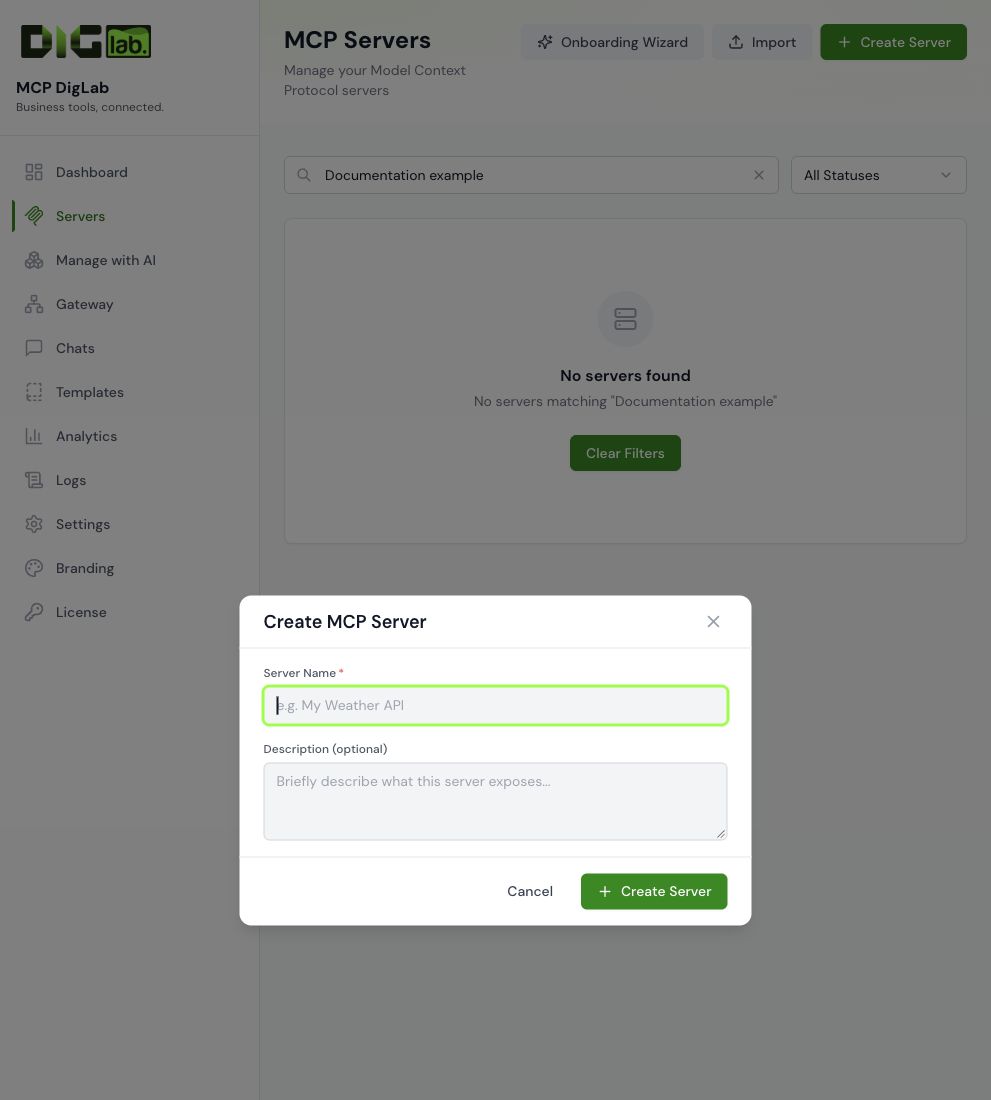
The required Server Name field and optional Description field belong to the first step. Creating this entry does not connect a business account, grant software entitlement or prove a tool works. Review the generated slug and inbound authentication in the resulting server settings. Keep an incomplete configuration inactive.
Step 2 Choose how to add tools#
If a suitable prepared connector exists, open Templates, use search or the category filter, then inspect its purpose and authentication requirement. The mailbox, database and file-server templates shown below each need their own authorised service connection.
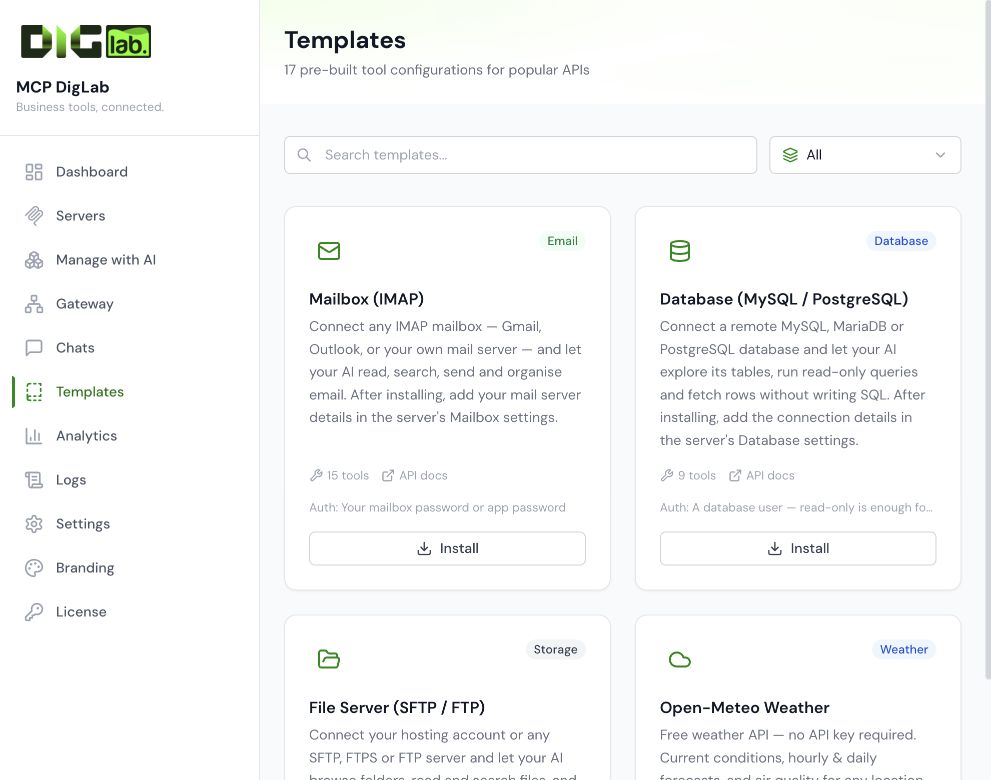
For a custom API, use the documented import route or build individual tools. Review the import preview, input schema, request method and response mapping before accepting definitions. Remove credentials and personal data from imported examples before sharing them. Installing definitions alone does not verify service access.
Continue with imports and templates, built-in connectors or building a tool.
Step 3 Check the two authentication layers#
Inbound authentication protects the MCP connection used by the AI client. Outbound authentication authorises requests to the business service. Match the intended organisation, workspace and account at both layers. Use the platform's supported encrypted settings and provider consent flow. Never paste a live key into a description, screenshot or shared guide.
A private integration must have explicit authentication. Review the server guide and OAuth connections for the supported routes in your installation.
Step 4 Test the outcome#
Use the inspector or agreed AI client to discover the expected tools and run one harmless read for an approved test record. Compare the returned identifier and account context with the source. Confirm that invalid inputs and missing authentication are rejected. Test write operations only within their authorised scope and verify the resulting record.
A green badge or HTTP success code can accompany an upstream error inside a result. Check the returned content and error fields before recording success. Use testing and playground for the testing sequence and troubleshooting for common failures.
Step 5 Hand over the assigned connection#
Provide the exact endpoint, supported AI client, authentication method, approved workflows, known limits and support route. Deliver credentials through the agreed secure channel. The customer completes discovery and the agreed read-only test in their own client.
For a managed connection, the handoff grants the agreed tool access; it does not grant shared administrator access. For an independent installation, include ownership, maintenance and backup responsibilities. Follow the onboarding handoff and hosting model guides.
Use the screenshots responsibly#
These images teach navigation and field purpose. They do not show your private endpoint or demonstrate that a particular customer account is connected. When requesting support, send a relevant error and a redacted screenshot through the agreed support channel. Leave credentials, private records and unrelated customer information out of the capture.